
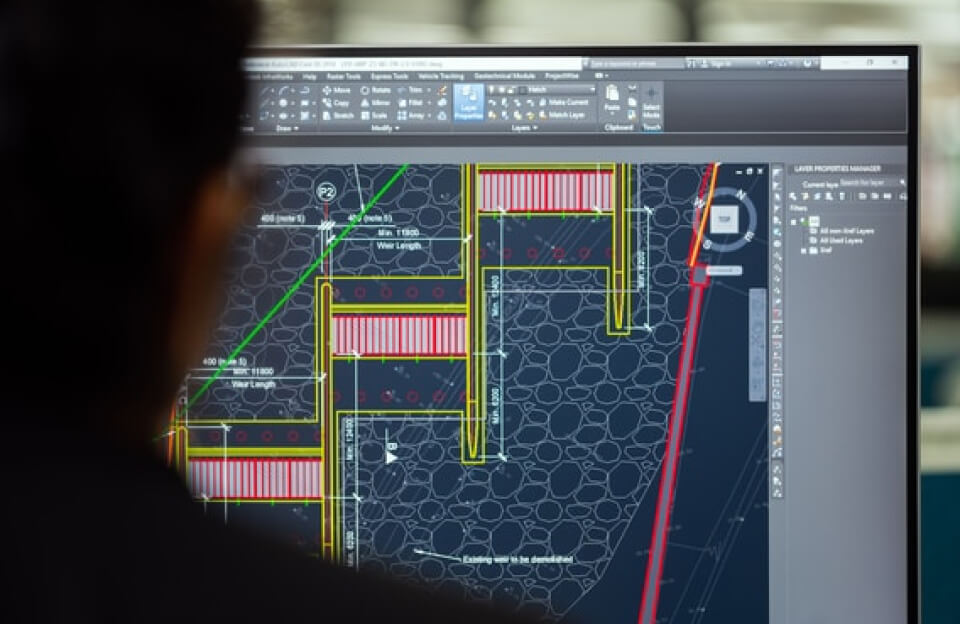
Life on CAD is fast-paced, detail-driven, and often demanding. Whether you’re an architect, engineer, designer, or drafter, CAD software is more than just a tool—it’s your daily workspace. In this environment, shortcuts are not optional extras; they are essential skills that separate slow, frustrating workflows from smooth, confident, and professional ones. Understanding and mastering CAD shortcuts fundamentally changes how you work, think, and design.
Why CAD Shortcuts Matter
At its core, CAD work involves repetition. Drawing lines, modifying shapes, adjusting views, switching layers, and adding annotations happen hundreds of times in a single project. When each of these actions requires menu navigation and mouse clicks, productivity drops quickly. CAD shortcuts eliminate unnecessary steps, allowing commands to execute instantly through the keyboard.
The biggest advantage of shortcuts isn’t just speed—it’s focus. When you stop searching for tools, your attention stays on the drawing. This uninterrupted flow reduces errors, improves accuracy, and makes the entire design process more enjoyable. Over time, shortcuts turn CAD into an extension of your hands rather than a system you constantly fight against.
CAD as a Digital Lifestyle
CAD is not simply software you open and close; it’s a digital drafting lifestyle. Much like traditional drafting rewarded steady hands and experience, modern CAD rewards efficiency and familiarity with commands. Keyboard-driven workflows outperform mouse-heavy ones because they reduce physical movement and mental switching.
Experienced CAD users often appear incredibly fast, but the secret isn’t speed—it’s economy. They click less, type more, and rely on muscle memory. Shortcuts allow them to stay immersed in the design rather than distracted by the interface.
The Psychology Behind Shortcuts
The human brain loves patterns and repetition. CAD shortcuts take advantage of muscle memory, allowing frequently used commands to become automatic. At first, using shortcuts feels intentional and slow. Over time, they become instinctive. This automation frees mental energy for design decisions, problem-solving, and creativity.
Shortcuts also reduce cognitive load. Every time you search a menu, your brain pauses and switches context. Shortcuts eliminate these micro-interruptions, helping you maintain focus and enter a productive flow state where work feels lighter and faster.
Understanding CAD Shortcuts
CAD shortcuts generally fall into two categories: command aliases and keyboard shortcuts. Command aliases are short text commands typed into the command line, such as “L” for Line or “TR” for Trim. Keyboard shortcuts involve key combinations like Ctrl, Shift, or Alt for actions such as undo, redo, and file management.
Most CAD software includes default shortcuts, which provide a solid foundation. However, customization is where real efficiency begins. Everyone thinks differently, and customizing shortcuts allows CAD to adapt to your habits instead of forcing you to adapt to it.
Faster Navigation Through Shortcuts
Navigation is one of the most frequent actions in CAD. Zooming, panning, and orbiting happen constantly, especially in complex drawings. Shortcut-based navigation keeps movement smooth and continuous, preventing the stop-and-start feeling that comes from relying solely on the mouse.
Efficient viewport control and workspace switching further enhance productivity. Instead of breaking focus to manage layouts and views, shortcuts allow instant transitions, keeping you mentally anchored in the task at hand.
Drawing Efficiently with Creation Shortcuts
Basic drawing commands like Line, Polyline, Circle, Rectangle, Arc, and Ellipse form the foundation of all CAD work. Using shortcuts for these commands transforms drawing into a fluid, rhythmic process. Your left hand triggers commands while your right hand controls placement, creating a seamless interaction between thought and execution.
Precision drawing also improves with shortcuts. Keyboard input for distances and angles, combined with object snaps, allows for exact geometry without constant corrections. This precision builds confidence and reduces the need for rework.
Editing Commands That Save Time
Editing is where most CAD time is spent. Commands like Move, Copy, Rotate, and Scale are used endlessly throughout a project. When these commands are triggered through shortcuts, editing becomes fast and flexible.
Commands such as Trim, Extend, and Offset refine drawings and clean geometry. With shortcuts, cleanup becomes so quick that users naturally maintain higher-quality drawings. Mirror and Array commands further multiply efficiency by duplicating geometry accurately and consistently, encouraging designers to think in systems rather than individual elements.
Organization Through Layer and Property Shortcuts
Layers are essential for maintaining order in CAD drawings. Shortcut-based layer control allows users to isolate, freeze, lock, or switch layers instantly. This keeps drawings readable and prevents mistakes caused by clutter.
Shortcuts also streamline property management. Adjusting colors, line types, and line weights without opening palettes saves time and keeps the workspace clean. Consistent visual standards become easier to maintain when property changes are effortless.
Annotation and Communication Made Simple
Annotations turn drawings into communication tools. Text, dimensions, and leaders explain intent, clarify measurements, and prevent misinterpretation. Shortcuts for annotation commands ensure that documentation keeps pace with design.
Dimensioning and text placement become natural extensions of the workflow rather than interruptions. Annotation scaling shortcuts help maintain consistency across different viewports and drawing scales, reducing frustration during layout preparation.
Advanced Shortcuts for Power Users
Advanced CAD users rely heavily on object snap shortcuts, selection cycling, and filters. Temporary object snap overrides provide precision exactly when needed without cluttering the screen. Selection tools allow accurate editing in dense drawings where overlapping objects are common.
Command line mastery is another hallmark of power users. Understanding prompts and responding quickly turns the command line into a dialogue rather than a barrier, unlocking the full potential of shortcut-driven workflows.
Customizing Shortcuts for Maximum Efficiency
Customization is where CAD truly becomes personal. Creating custom aliases allows users to align shortcuts with their natural thinking patterns. Editing shortcut configuration files may seem technical, but it gives complete control over how commands are executed.
Consistency across teams is equally important. When team members share similar shortcut standards, collaboration improves, training time decreases, and projects move more smoothly.
Shortcuts Across Different CAD Platforms
While shortcut systems vary between platforms like AutoCAD, SolidWorks, and Fusion 360, the underlying philosophy remains the same: reduce friction and increase speed. Learning shortcuts in one platform builds transferable skills that make adapting to new software easier.
Modern CAD tools continue to evolve, integrating automation, predictive commands, and smarter interfaces. Still, shortcuts remain central to efficient workflows.
Avoiding Common Shortcut Mistakes
One common mistake is trying to learn too many shortcuts at once. This leads to overload and frustration. A gradual approach—learning a few shortcuts at a time—builds confidence and retention.
Another issue is ignoring context-sensitive behavior. Some shortcuts behave differently depending on the current command or mode. Understanding these nuances prevents errors and improves reliability.
Learning Shortcuts Faster
Effective learning strategies include adopting a “one shortcut a day” habit, creating personal cheat sheets, and practicing shortcuts in real projects rather than isolated exercises. Practical use reinforces memory far better than memorization alone.
Life on CAD After Mastering Shortcuts
Before mastering shortcuts, CAD often feels slow, tiring, and mentally draining. Afterward, it feels controlled, efficient, and even enjoyable. Productivity increases, confidence grows, and entering a flow state becomes common rather than rare.
The Future of CAD Shortcuts
The future of CAD will likely blend shortcuts with AI-assisted commands, voice input, and gesture controls. However, the principle of efficiency through familiarity will remain unchanged. Shortcuts may evolve, but their role in professional CAD workflows is here to stay.
Conclusion
Life on CAD is defined by efficiency. Shortcuts bridge the gap between intention and execution, turning ideas into accurate drawings with speed and clarity. They save time, reduce stress, and elevate the quality of work. Mastering CAD shortcuts isn’t just a technical skill—it’s a professional mindset and, ultimately, a lifestyle.